How to give access to Check Uploader Software
SOP #: | 013 |
| Prepared by: | Samuel Labastille |
Revision Date: | 7/10/2026 |
| Approved by: | Allwyn Griffith |
Purpose/Summary Statement:
Outlines steps to provision User’s access to the Check Uploader Software.
Scope
Milrose Accounting Employees who need to upload checks downloaded from a bank to the Milrose Wave system.
Procedure:
Install Java Runtime Environment
- Verify if java is installed
- Open Command Prompt and Run java -version

- If Java is already installed as indicated above skip to the “Install Check Uploader” section
- Download the latest Windows Offline (64-bit) version of Java using this Link
- Run the installer as an Administrator
- Select Install
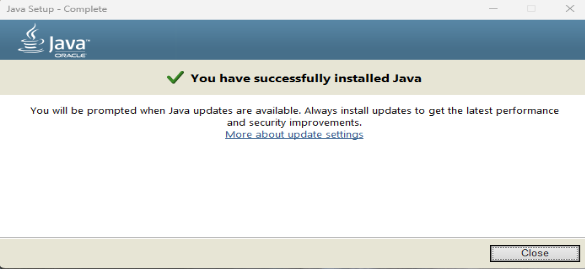
- Once completed you will have the screen below
Install Check Uploader
- Retrieve the Check Uploader Folder from the IT SharePoint
- Download the folder and move it to Documents
- Open the Check uploader folder in Documents
- Right click on “uploader-2.jar”
- Choose show more options and select create shortcut
- Name the shortcut “Check Uploader”
- Right Click the shortcut and move it to Desktop
Accounts / Access:
To perform the tasks in this SOP you will need a domain administrator or a user administrator account in AD
Was this article helpful?
That’s Great!
Thank you for your feedback
Sorry! We couldn't be helpful
Thank you for your feedback
Feedback sent
We appreciate your effort and will try to fix the article