SOP #: | 011 |
| Prepared by: | S. Labastille |
Revision Date: | 1/16/26 |
| Approved by: | A. Griffith |
Purpose/Summary Statement:
The purpose of this SOP is to define the standardized process for provisioning, modifying, and removing user access to QuickBooks Desktop across all Milrose controlled QuickBooks.
Scope
This applies to Milrose employees within the Accounting and Finance departments who require access to QuickBooks Desktop. Access is dependent on the user’s manager. This document covers only QuickBooks instances found on \\FS02.Jmzoning.Local\data. These include ARC, CSI, JMZ, CSI-Milrose and PlansRunner.
Procedure:
Approval
- Get manager Approval
- Get IT Director approval
- Retrieve the following information from the user’s manager:
- Get user QBD role and QBD company from manager, assign user to appropriate roles
Provision Access to the QuickBooks Company File/ QBD database
- Open Active Directory as an Administrator
- Add the user to the following group based on the QBD company specified by the manager
- JMZ - FS02-DATA-QuickBooks-JMZ- RW
- CSI - JMZFS02-DATA-QuickBooks-CSI(RW)
- MILROSE/CSI - JMZFS02-DATA-QuickBooks-MILROSE-CSI(RW)
- If no security group exists for the company being requested see the IT Director.
Create the user’s QuickBooks Account
- (If you do not have the application, Install the latest version of the client using the instructions in section” Install the application for the user”)
- Login to QB Desktop as the QBD administrator
- QB admin credentials are in IT-Glue
- Enter Admin credentials again. Skip Intuit login if prompted.
- Skip creating a user Intuit email account
- Navigate to Company > Users > Setup Users and Roles…
- In the new window select New
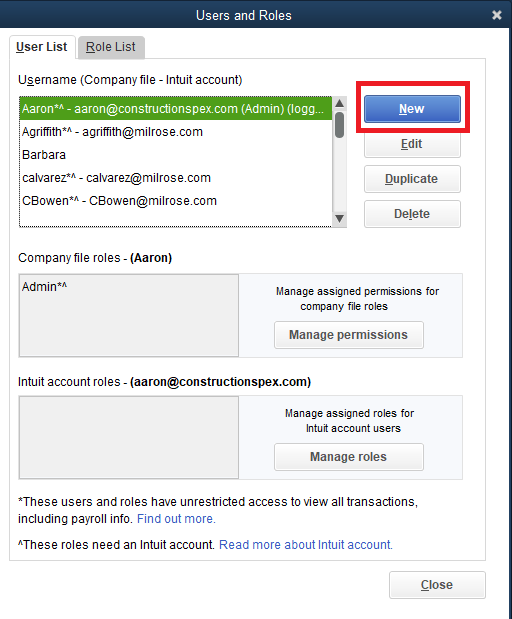
- Fill out the form below with the standard below
- User Name: Use the user’s UPN
- Password: 8 characters with 1 number, 1 uppercase letter and 1 special character
- Assigned Roles: to be provisioned by the user’s manager
- User’s email
- Select OK to finalize account creation
Map the drive with company file for the user
- Open File Explorer
- Right click This PC and choose Map network drive…
- Map to the folder below
- \\FS02\jmzoning.local\data to Q:
- Make the drive permanent.
- Make sure to use the user’s credentials when mapping the drive
Install the application for the user
- Download QB Desktop App à https://downloads.quickbooks.com/app/qbdt/products
- Country: United States
- Product: QuickBooks Desktop Enterprise
- Version: 24
- Choose Enterprise 24 when downloading
- Run the QuickBooks installer as an administrator
- Click on the QuickBooks License Agreement link to reveal the checkbox below
- Check to accept the terms and click Continue
- On the next page enter the licensing information found in IT Glue then click Next
- On the next page choose the 1st option; “I’ll be using QBD on this Computer” and click Next
- Keep the default location and select Next
- Select Install and QuickBooks will install its resources, this will take about 10 minutes.
- Reboot the PC
- Open QuickBooks
- Choose the “Enterprise Solutions Professional Service” and click Next
- Select Finish on the next page
- Select No for automatic updates
- On the No Company Open screen, select Open or Restore an Existing Company.
- Choose Open a company file → click Next.
- Browse the location of the .QBW file. This will be the “QuickBooks Company File” with the biggest size
- Select the file and click Open.
- Enter QuickBooks login credentials when prompted.
- Allow QuickBooks a few minutes after selecting OK to fully load
Accounts / Access:
To perform the tasks in this SOP you will need a domain administrator or a user administrator account in AD and Administrator Account in QuickBooks for the specific company. Credentials can be found in IT Glue.
Was this article helpful?
That’s Great!
Thank you for your feedback
Sorry! We couldn't be helpful
Thank you for your feedback
Feedback sent
We appreciate your effort and will try to fix the article