SOP #: | 003 |
| Prepared by: | Samuel Labastille |
Revision Date: | 11/7/2025 |
| Approved by: | A. Griffith |
Purpose/Summary Statement:
Defines the process for granting Milrose employees access to DocuSign. It ensures that appropriate approval, access levels, and permissions are assigned consistently and securely in alignment with company policy.
Scope
Applies to all Milrose employees who require access to DocuSign for business purposes, such as signing, sending, or viewing company documents and agreements. It includes users across all departments who need DocuSign access to perform their job responsibilities.
Procedure:
Leverage Approval
- Get manager Approval
- Find out from the user’s manager which level of access is needed.
- Sender: A user with the ability to create, send, and manage documents for signature.
- Viewer: A user with permission to view documents but not send or modify them.
- Get Approval from April Rosier to purchase an additional license
Provision the License
- Login to the DocuSign admin portal
- Underneath USERS AND GROUPS select Users
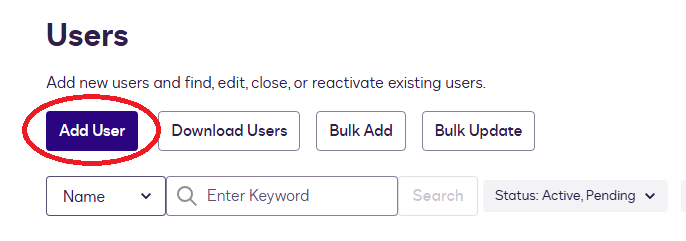
- Click on Add User at the top right
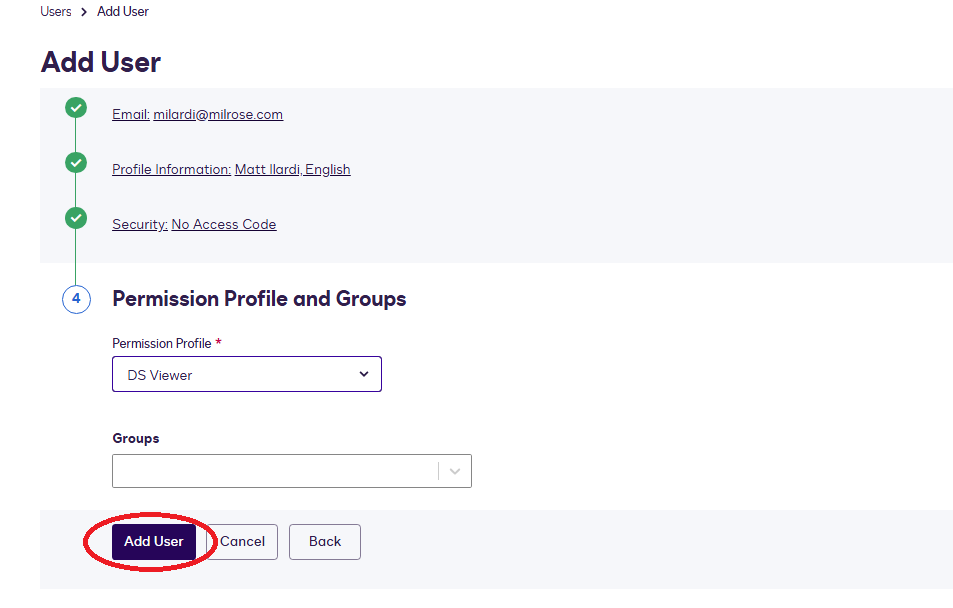
- In Section 1 enter the users’ email address
- In Section 2 enter the user’s Full name and Language only
- In Section 3 leave the field’s blank and click next
- In Section 4 choose the user’s Permission Profile
- Sender: A user with the ability to create, send, and manage documents for signature.
- Viewer: A user with permission to view documents but not send or modify them.
- DO NOT PROVISION ADMIN Access for non-IT user’s
- Select Add user and the user will receive an email with a link to set up their account
Activating the License
- The end user will receive an email with the subject “Account Activation” with a link to setup their account like the one below
- Instruct the user to click on activate and they will be routed to a form to create their DocuSign account.
- Have the user create a memorable username and password
- If the user forgets their password, IT can reset their password underneath actions
Accounts / Access:
A DocuSign Account with DS ADMIN permission is needed to perform the functions in this SOP.
To view the list of current DS ADMIN’s click here.
Was this article helpful?
That’s Great!
Thank you for your feedback
Sorry! We couldn't be helpful
Thank you for your feedback
Feedback sent
We appreciate your effort and will try to fix the article