SOP #: | 004 |
| Prepared by: | Samuel Labastille |
Revision Date: | 11/7/2025 |
| Approved by: | A. Griffith |
Purpose/Summary Statement:
Instructions for IT staff to set up and configure a laptop, desktop or tablet. It ensures that all devices are prepared consistently with inventory tracking, standard company applications, security patches/updates, and network/domain configurations.
Scope
This applies to new and refurbished PCs that require set-up and configuration for Milrose office users.
Procedure:
Initializing Steps
- If you have a new device (out of the box) skip to step 8 else continue
- If this is a device upgrade, make sure to backup all files, browser favorites and password.
- Make sure to check device root for additional folders
- Plug in the AC adapter and turn on the device.
- Following instructions may vary slightly depending on windows version and device type (Lenovo laptop, surface etc.)
- Boot from our standard windows 11 upgrade flash drive
- Delete all the existing drive partitions
- Perform a fresh installation of the windows 11 operating system
- Follow the prompts to finish the installation and perform all patch installations
OS Setup Steps
- Plug in the AC adapter and turn on the device.
- Follow the prompts and connect to the Milrose network through Wi-Fi or a LAN connection
- In the “Let’s name your device” page set the device name using the standard below
- Laptops - PCN-(serial number)
- Desktops - PCD-(serial number)
- Tablets - PCT-(serial number)
- In the “How would you like to setup this device?” page
- Select “Setup for work or school”
- Choose “Sign-in options”
- Select “Domain join instead”
- When prompted for “Who’s going to use this device?”
- Enter “Admin” and use the standard admin password from IT Glue
- On the next page choose three arbitrary security questions and answer them all with “milrose”
- Skip the “face sign in” page
- Confirm privacy settings
- Skip the “Protect your device" page
- Allow the pc some time to perform windows update. This will take around 30 – 60 minutes
Add the PC to the Domain and proper OU
- Add the PC to the Milrose domain with the steps below
- Open the Settings App
- Head to System > About > Domain or work group
- From the Computer Name tab select Change
- Select Domain and enter the domain address below
- milrose-ny.com
- Enter the Domain Administrator credentials from IT Glue and restart when prompted.
- Add the user’s pc in the same OU as their office location
- Ie: User located in the Milrose Connecticut office will be in the organizational unit below
- Milrose-ny.com > Milrose > CT > Computers
Install the Basic Milrose Applications
- Lenovo System Update
- Lenovo Dock manager
- Manage Engine Agent
- Google Chrome
- Office 365
- Mimecast for Outlook
- Adobe Acrobat Reader
- Cisco Secure Client VPN
- Enable Cisco Secure Client settings to download the application
- Make sure to disable “Block Connections to Untrusted Servers”
- Open Secure Client
- Click on the gear(settings) icon at the bottom left
- AnyConnect – Preferences – Uncheck “Block Connections to Untrusted Servers”
- Install Milrose approved apps requiring funding or additional licensing
- Example:
- Bluebeam, Adobe Acrobat, AutoCAD, QuickBooks, Wave, Certinia, Deltek Ajera, etc.
- Get User’s manager approval and IT Director approval before installing these apps
- Example:
Office Printers
- Set up the printers & drivers for the user.
- Below is an example for setting up printers for Milrose NYC office users.
- Log on to the pc with the domain administrator account
- Head to Settings – Bluetooth & Devices – Printers & Scanners
- For all 4 office printers listed below follow steps 4 & 5
- Click on Add device
- Select the printer and wait for it to be added
Updates/patches
Perform all the patches below
- Open the Lenovo dock manager app while the pc is plugged into a dock and perform patches
- If the sub-companies’ pc standard is different (dell, surface etc.), install the appropriate system update tool.
- Open the Lenovo system updates app and perform all recommended and critical updates
- Open Windows settings – Windows Updates – Check for updates
- Open Windows settings – Windows Updates – Advanced options – Optional patches
Asset ID
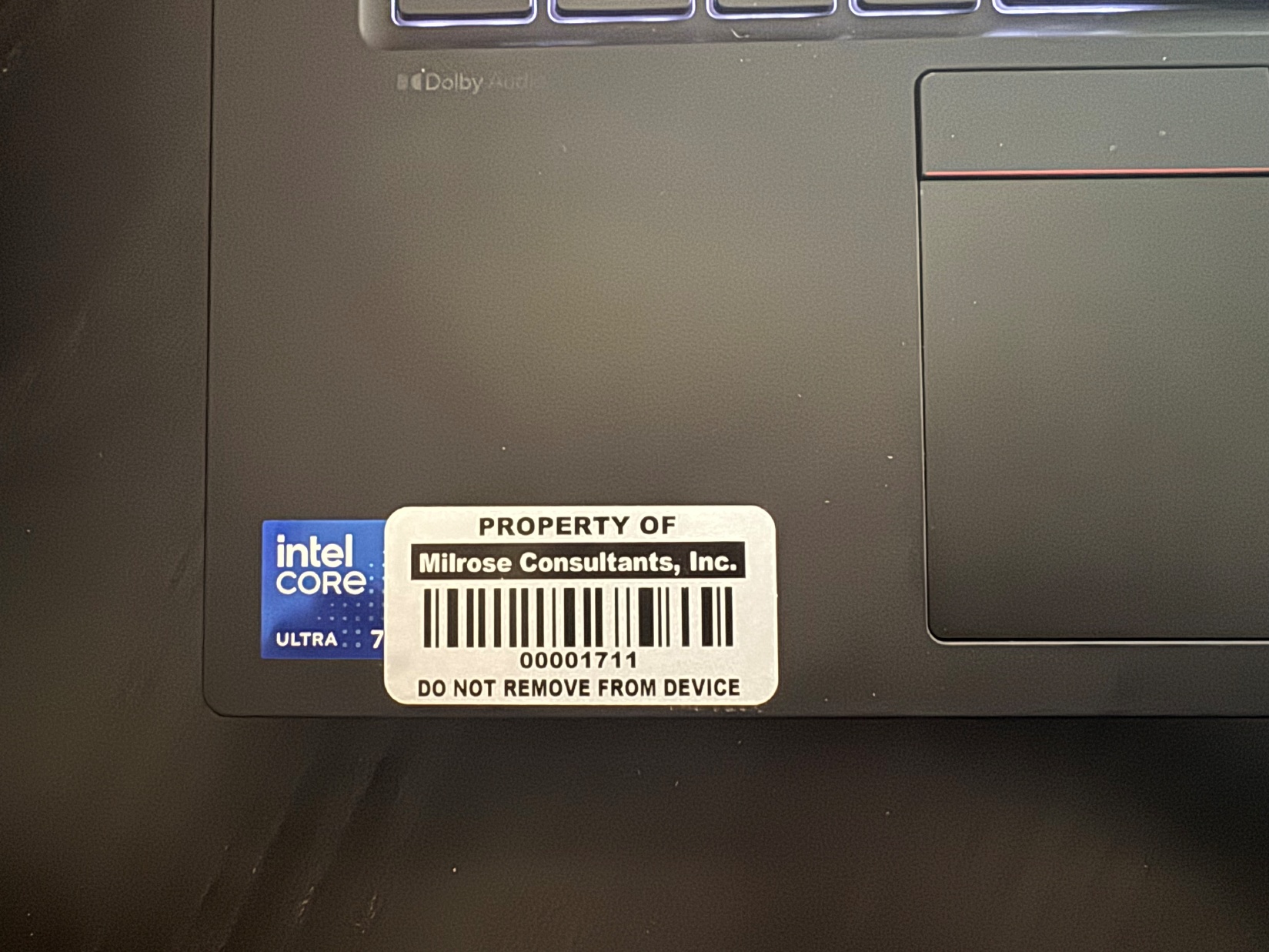
- Retrieve an asset tag sticker from Adolfo
- Place the sticker at the bottom right of the PC near the CPU sticker as indicated below
- Open the endpoint central web UI
- Head to Inventory – Computers
- Click on the magnifying glass at the top right and search for the computer name you created in the initializing step
- Click on the computer name and scroll down to custom fields
- Next to “Milrose Asset ID” click on the edit pencil and enter the value found on the sticker as indicated below
- Next to “System Owner” click on the edit pencil and enter the name of the designated pc user
User Initial Onboarding
- Set up a meeting with the user to assist with logging in and finalizing the pc setup
- PC login/AD, VPN, MS Office, Mimecast, Adobe Acrobat, Freshdesk Portal, myApps
Accounts / Access:
To perform the tasks in this SOP you will need a domain administrator or a user administrator account in AD and O365.
Was this article helpful?
That’s Great!
Thank you for your feedback
Sorry! We couldn't be helpful
Thank you for your feedback
Feedback sent
We appreciate your effort and will try to fix the article