SOP #: | 010 |
| Prepared by: | Samuel Labastille |
Revision Date: | 1/9/2026 |
| Approved by: | A. Griffith |
Purpose/Summary Statement:
Outlines the process for granting users access to Adobe Acrobat Pro within the Milrose.com Adobe Admin Console, including steps for purchasing additional licenses through the E78 Nexus Marketplace when required.
Scope
This procedure applies to all Milrose Companies’ users. It covers actions performed in both the Adobe Admin Console and E78 Nexus Marketplace portals. The Milrose Account is our main account and is directly connected to the E78 Nexus Marketplace
Procedure:
- Get approval from the user’s manager and IT Director.
- Login to the Adobe Admin Console with one of the credentials below.
- Milrose Credentials – This is the primary account. All new license purchases will always go under this account.
- Permit Advisors - This account should only be used to move licenses around and re-assign to users if the Milrose account has run out of licenses. Do not buy new licenses in this account, if new licenses are needed they will be purchased under the Milrose account.
- HLZAE - This account should only be used to move licenses around and re-assign to users if the Milrose account has run out of licenses. Do not buy new licenses in this account, if new licenses are needed they will be purchased under the Milrose account.
- Select Products at the top nav bar
- Underneath Document Cloud see Acrobat Pro and check if licenses are available
- If licenses do not exist in either account, follow the steps below otherwise move to step 6
- Login to E78 Nexus Maketplace
- Reach out to Allwyn/Adolfo if missing access
- Click on Account at the top right of the navbar
- Login to E78 Nexus Maketplace
- Select Applications on the next page
- Select Manage Apps on the left navigation pane
- Scroll down and look for Adobe Document Cloud and click the Update Subscription button
- Select Acrobat Pro DC for Teams
- Within the same pane add 5 to the Total Users count at the bottom right corner and click on continue
- On the next page leave the text boxes empty and click next until you get to the Confirm Order page

- Agree to the terms and conditions and click on Place Order
- The licenses will take about 2-3 hours to appear in the Adobe Acrobat portal
- If the license does not provision reach out to marnie.cody@appdirect.com or marketplace@appdirect.com to provision the licenses
- Login to the Adobe Admin Console with one of the credentials below.
- Milrose Credentials – This is the primary account. All new license purchases will always go under this account.
- Permit Advisors - This account should only be used to move licenses around and re-assign to users if the Milrose account has run out of licenses. Do not buy new licenses in this account, if new licenses are needed they will be purchased under the Milrose account.
- HLZAE - This account should only be used to move licenses around and re-assign to users if the Milrose account has run out of licenses. Do not buy new licenses in this account, if new licenses are needed they will be purchased under the Milrose account.
- Select Products at the top nav bar
- Select Add users
- Enter the user’s email address
- If no account exists for the user choose Add as a new user and enter their first and last name
- Under PRODUCT ROLE choose User and click on save
- Advise the end-user that they will receive an email with an activation link from Adobe like the one below.
- Have the user open the email select “Get started”
- On the next screen, verify your identity using the code sent to your email.
- Fill out the form below and complete the account
- Advise the user that this password will be separate from their O365/Ad password. If they forget their password, they can reset it with the “forgot password” link on the sign in page.
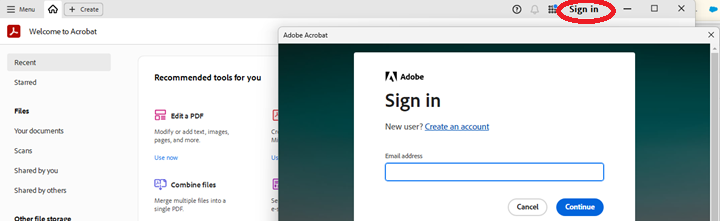
- Open the Adobe Acrobat App and select “Sign in” at the top right and use the credentials just created
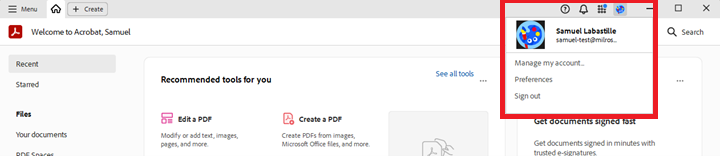
- One signed in the user’s profile will be at the top right as indicated below
Accounts / Access:
To perform the tasks in this SOP you will need:
- Adobe Account with SYSTEM ADMINISTRATOR rights
- Milrose Main Account Acrobat Admins
- Permit Advisors Account Acrobat Admins
- HLZAE Account Acrobat Admins
- Nexus E78 Account with COMPANY ADMIN rights
- Nexus E78 Milrose Account Manager
- Marnie Cody
- myranda.morrison@appdirect.com
- O: (248)554-1027
Was this article helpful?
That’s Great!
Thank you for your feedback
Sorry! We couldn't be helpful
Thank you for your feedback
Feedback sent
We appreciate your effort and will try to fix the article