SOP #: | 008 |
| Prepared by: | Samuel Labastille |
Revision Date: | 12/19/2025 |
| Approved by: | Allwyn Griffith |
Purpose/Summary Statement:
The purpose of this SOP is to outline the steps to provide access to a user’s personal OneDrive
Scope
This applies to Millrose employees whose OneDrive data must be accessed by another authorized Milrose user due to job transition, termination, extended absence, legal request, or business necessity.
Procedure:
- Get approval from the user’s manager and IT Director.
- Provision access to the OneDrive
- Sign in to the Microsoft 365 Admin Center
- In the left pane, select Admin centers > SharePoint. (Select “Show all” to see the list of admin centers.)
- If the classic SharePoint admin center appears, select Open it now at the top of the page to open the SharePoint admin center.
- In the left pane, select More features.
- Under User profiles, select Open.
- Under People, select Manage User Profiles.
- Enter the former employee's name and select Find.
- Right-click the user Account name, and then choose Manage site collection owners.
- Add the user (requesting access) to Site collection administrators and select OK.
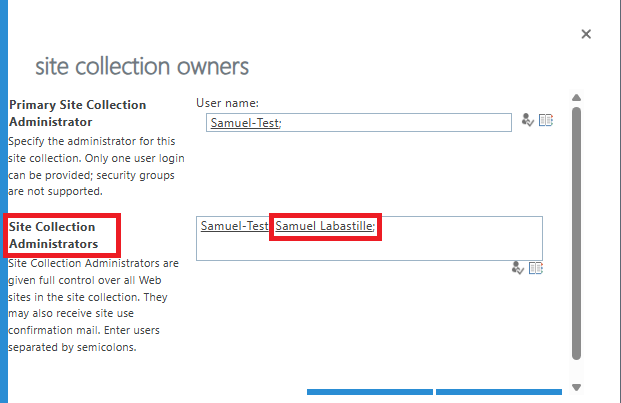
- Create the Link to the OneDrive
- Sign in to the Microsoft 365 Admin Center using your admin credentials.
- Navigate to Users > Active users.
- Click on the user’s name whose OneDrive you want to grant access to.
- Switch to the OneDrive tab
- Under “Get access to files” select “Create link to Files”
- Provide the OneDrive URL to the requestor and they will now be able to access the employee's OneDrive.
Accounts / Access:
To perform the tasks in this SOP you will need an Account with administrator access to Microsoft 365 admin center
Was this article helpful?
That’s Great!
Thank you for your feedback
Sorry! We couldn't be helpful
Thank you for your feedback
Feedback sent
We appreciate your effort and will try to fix the article