SOP #: | 009 |
| Prepared by: | Samuel Labastille |
Revision Date: | 1/9/2026 |
| Approved by: | A. Griffith |
Purpose/Summary Statement:
Outlines the steps to install and configure the Cisco VPN client on windows devices.
Scope
This applies to all Milrose employees who utilize the VPN client to access company resources remotely.
Procedure:
- Download the Cisco secure client
- Choose the following options and click Install Selected
- Accept the terms and click ok to finalize the installation
- Open the Cisco Secure Client app
- Once this window pops up click on the gear icon at the bottom left
- Once the new window opens, click AnyConnect VPN on the right-hand side
- Select Preferences in the tabs bar and make sure “Block connections to untrusted servers” is unchecked
- Close out of that window and open the Cisco Secure Client app
- Enter vpn.milrose.com and click Connect
- Choose Connect Anyway
- Enter your Milrose email address and click next
- Approve the request through your Authenticator app
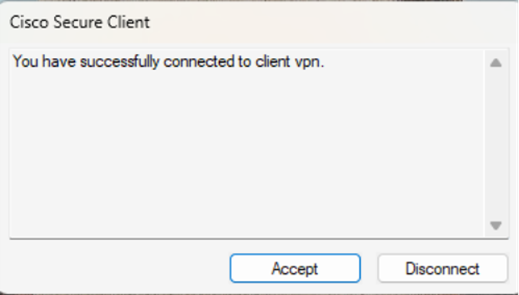
- Accept the prompt below and you’ve successfully connected
Accounts / Access:
To perform the tasks in this SOP you will need a domain administrator or a user administrator account in AD and a Cisco Meraki Portal administrator account
Was this article helpful?
That’s Great!
Thank you for your feedback
Sorry! We couldn't be helpful
Thank you for your feedback
Feedback sent
We appreciate your effort and will try to fix the article